If your team is on ChatGPT and you have been wondering what it costs to switch, the answer is "one paste." Anthropic shipped a memory import tool that asks ChatGPT to summarise everything it knows about you, then ingests that summary into Claude's memory. You never file an export request or write a line of code.
Worth knowing before you start: this only moves memory, not chats. If you also want the raw history, files, or custom GPTs, see the second half of this note. For most teams the memory is 80% of the value and the rest does not survive a tool switch anyway.
01Open the import tool
Go to Settings > Capabilities > Memory in Claude and click Import memory from other AI providers. The toggle Generate memory from chat history on the same page must be on first, otherwise the import has nowhere to land.
Two routes, same screen.
Direct link. claude.ai/settings/capabilities with the memory import dialog pre-opened.
Manual.
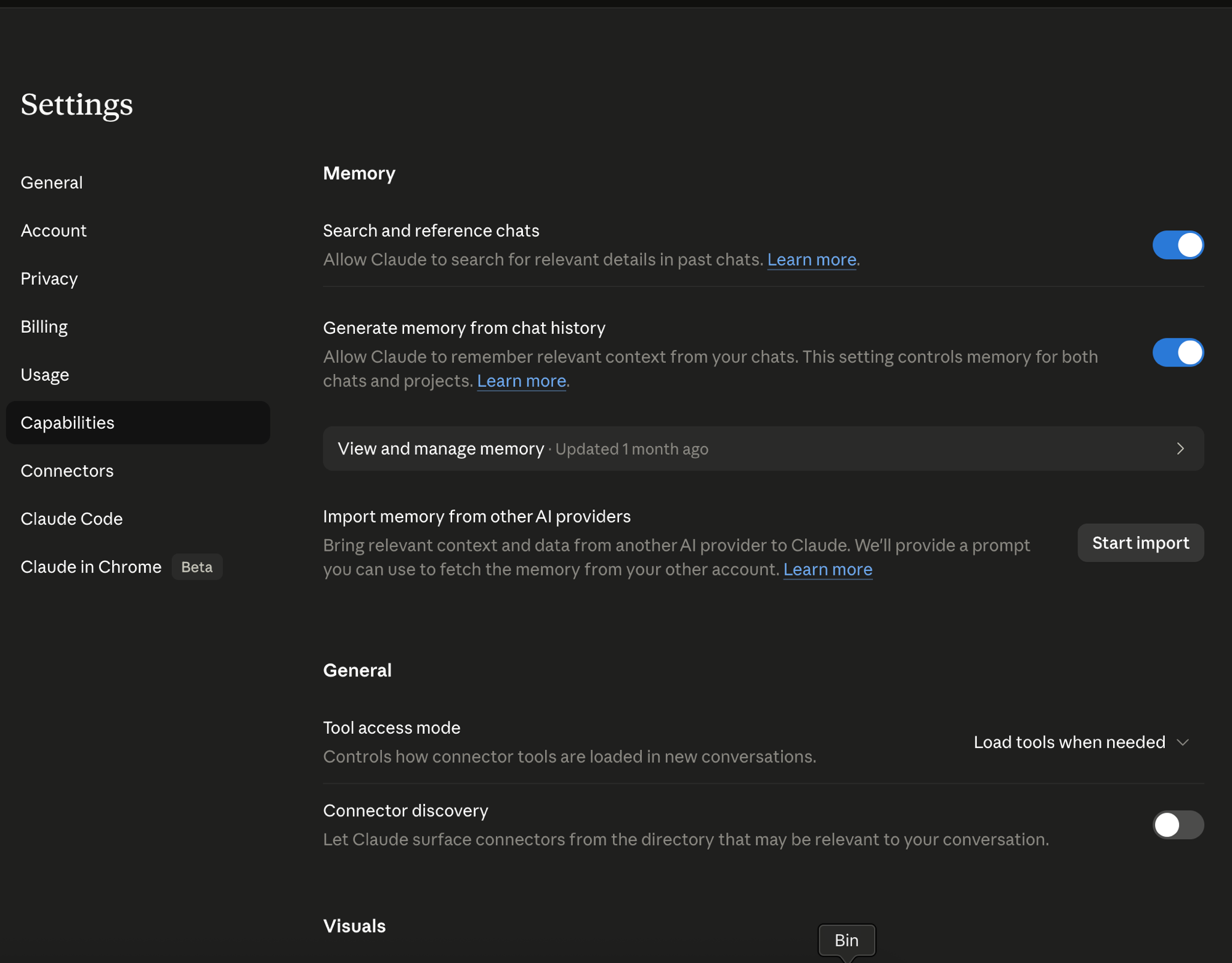
Before you click Start import, scroll up on the same page. There is a toggle called Generate memory from chat history. If it is off, Claude has nowhere to put what it imports. Turn it on first. It controls memory for both regular chats and Projects.
02The five steps
Open the import dialog, copy Claude's extraction prompt, paste it into ChatGPT, copy the structured code block back, paste it into Claude, then verify in View and manage memory. Sixty seconds of active work, up to 24 hours for processing.
Each step takes seconds, except the wait at the end.
Open the import dialog
Click Start import. Claude opens a two-step dialog: a copy-able prompt up top, a paste textarea below.
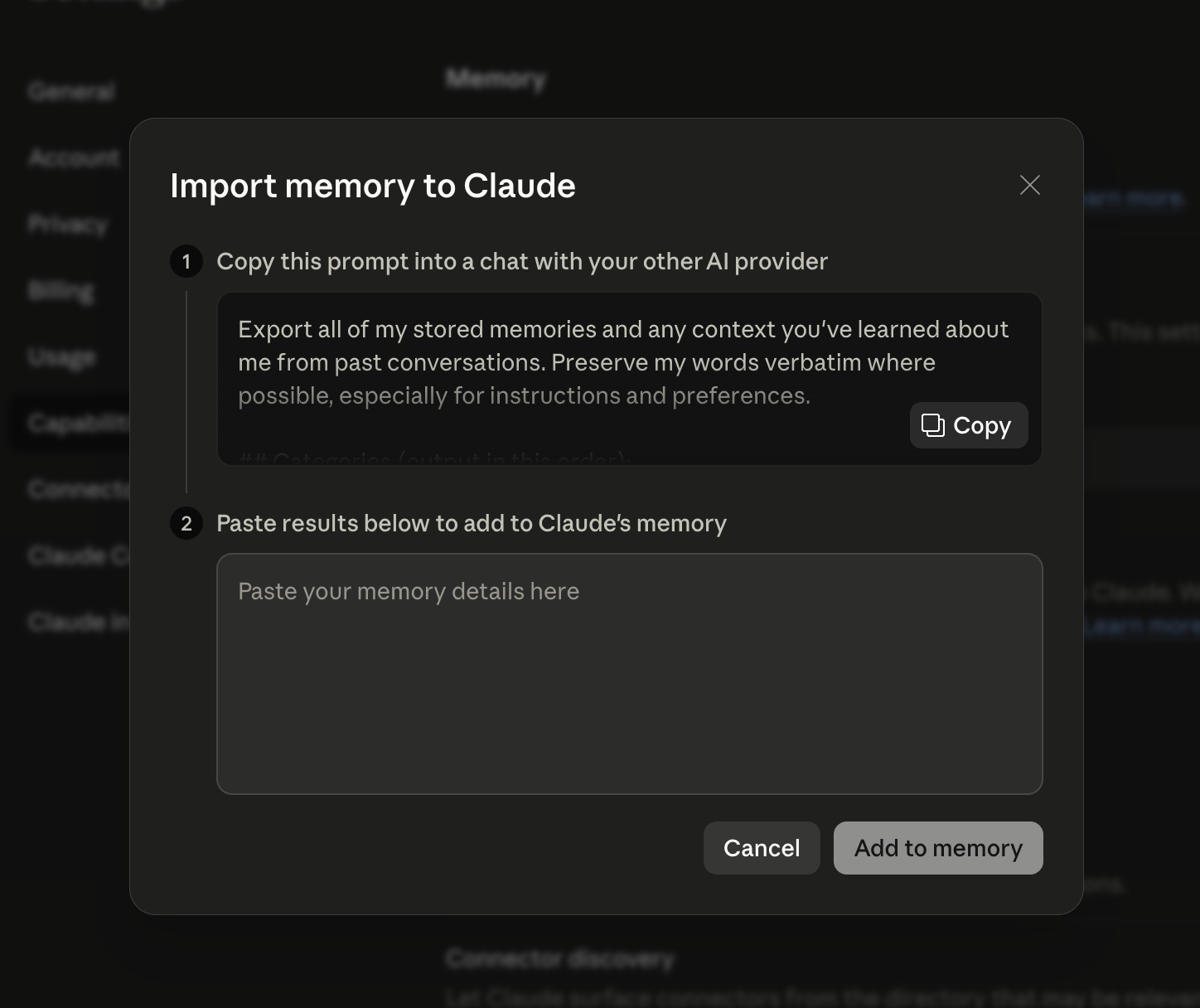
Copy the prompt Claude gives you
The prompt is below, verbatim. You can copy it from Claude or from this page. It is engineered to ask ChatGPT specifically for stored memory, not for conversation summaries.
Paste it into ChatGPT
Open a fresh ChatGPT chat. Any model works. Paste, send. ChatGPT returns a single code block with five sections (Instructions, Identity, Career, Projects, Preferences), each line timestamped [YYYY-MM-DD]. If the dump is partial, ChatGPT tells you. Reply "continue" and append the next block to the same export.
Before you copy: skim the output. If a line is wrong (outdated job, project you killed, a preference you have changed), edit the code block before pasting into Claude. Claude treats whatever you paste as authoritative.
Paste it back into Claude
Back in the import dialog, paste the entire code block into the textarea. Hit submit. Claude says "up to 24 hours" for the memory to populate, but in practice it is usually live in minutes.
Verify and edit
Go back to Settings > Capabilities > View and manage memory. Every imported fact is listed, sorted by category. Do two things while you are there.
Cull what is stale. ChatGPT memory accretes. Not all of it deserves a second life.
Add what did not carry. Claude's memory leans work-focused, so personal context like favorite music or family birthdays can slip down the list. If it matters, type it in directly.
Measured across three of our own accounts. The bulk of that minute is ChatGPT generating the export, not you. The verification pass adds another two minutes if you actually read what was imported, which you should.
03What actually transfers
Five categories: Instructions (rules and tone), Identity (who you are), Career (your work history), Projects (what you're building), and Preferences (style and taste). Stored memory only, never raw conversation text.
The extraction prompt is explicit about what to pull. Five categories, in this order.
Instructions
Explicit rules you set, tone, format, banned words, "always X, never Y". The behavioral overlay.
Identity
Name, location, languages, education, relationships, personal interests.
Career
Current and past roles, companies, skill areas you actually work in.
Projects
One entry per real project, what it does, current status, key decisions. The big one.
Preferences
Opinions, taste, working style. Broad rules that color how you want Claude to respond. Lighter than Instructions, still load-bearing.
04What stays behind
Five things do not migrate: full chat transcripts, Custom GPTs, uploaded files, image generations, and voice audio. Memory is summarised, not the raw history. Plan for each separately if you want it preserved.
Check this list before you cancel ChatGPT Plus.
| Asset | Why it is stuck | Workaround |
|---|---|---|
| Full chat transcripts | Import is summarised memory, not raw history. | Request a data export from ChatGPT (Settings > Data Controls > Export data), archive the zip. |
| Custom GPTs | Bound to OpenAI's runtime. | Rebuild as Claude Projects (next section). |
| Uploaded files | Files sit in ChatGPT storage, not memory. | Re-upload the important ones into a Claude Project's Knowledge. |
| Image generations | DALL·E output is not in memory or export. | Save the images manually before you leave. |
| Voice audio | Audio is not exported. Voice transcripts are. | Accept the loss. Transcripts get summarised into memory anyway. |
05Memory vs Projects
Memory is a thin global layer that travels with every chat. Projects are scoped sandboxes for one workstream, with their own files and instructions. Import memory first to get your defaults across, then build Projects for specific work.
Most operators end up using both, and the two are edited in different places.
| Memory | Project | |
|---|---|---|
| Scope | Every chat, globally | One sandbox, one domain |
| Holds | Facts, preferences, rules | Files, custom instructions, dedicated history |
| Right for | Voice, style, who you are | Client X, the codebase, the book you are writing |
| Edited at | View and manage memory page | Project settings, anytime |
Order that works: import memory first so your defaults travel for free. Then spin up a Project per real workstream and upload the files or instructions that ChatGPT's custom GPTs used to hold. The memory makes Claude feel like Claude knew you all along. The Projects make Claude useful on the specific work.
The fewer tools a team carries, the faster they ship. Move the memory, kill the second tab. Wedge field notes
06Smoke test before you close the laptop
Open a new plain chat and ask Claude what it remembers about your current main project and how you prefer responses. If the answer is specific to you, the import worked. If it's generic, the memory toggle is off, processing is still running, or your ChatGPT memory was thinner than you thought.
Open a new chat in Claude. Not a Project, a plain chat. Ask:
"Based on what you remember about me, what is my current main project and how do I prefer you respond?"
If the answer is specific to you, you are done. If it is generic, one of three things happened. The memory toggle is off, the import is still processing, or the ChatGPT memory you exported was thinner than you thought. Each one has a fix on this page.